Guide: How To Secure Your Nintendo Switch 2 With A Passcode
The Nintendo Switch 2 comes with a new feature called System Lock that allows you to prevent other people from accessing it.
In this guide, we will show you how to set up System Lock and use it as a security measure.
How System Lock works
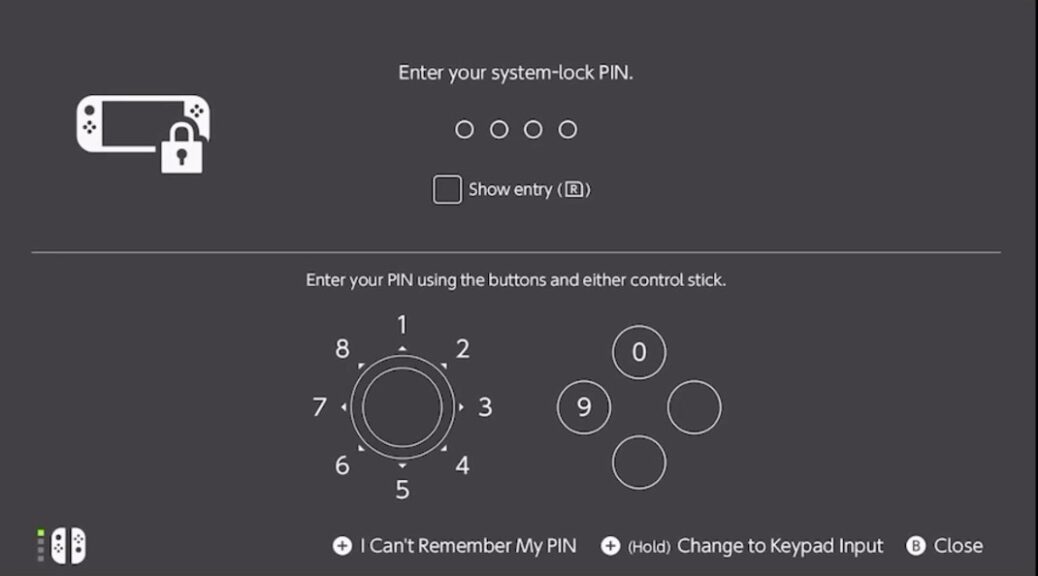
When System Lock is enabled, the user will be required to enter a PIN (passcode) every time the system wakes up from sleep mode.
If the PIN is correct, access to the system will be granted. If it’s incorrect, the user won’t be able to access it.
Please keep in mind that the system will prevent the user from entering the PIN for a certain time after five failed attempts, and all users have to enter the PIN to access the system.
How to enable System Lock
Follow the steps below to enable System Lock.
- Turn on your Nintendo Switch 2
- Go to the HOME Menu
- Press the System Settings button on the HOME Menu
- Scroll down to “System”
- Select “System Lock”. A prompt will appear, press “OK”
- You will be asked to enter a 4 – 8 digit PIN on the screen by using the buttons or control stick. Press the R shoulder button to display the PIN that you entered
- Press “OK” once you’ve entered the PIN
- Re-enter the PIN again
- The setup is complete
How to disable System Lock
Follow the steps below to disable System Lock.
- Turn on your Nintendo Switch 2
- Go to the HOME Menu
- Press the System Settings button on the HOME Menu
- Scroll down to “System”
- Select “System Lock”. A prompt will appear asking you to enter your PIN
- You will be asked whether you want to disable System Lock. Press “OK” / “Yes”
What to do if your forgot the PIN
If you forgot the PIN, press the + button when you are on the PIN entry screen and follow the instructions there.
We recommend setting the PIN to something that is easy to remember and keeping a copy of it in a Password Manager.